Overview
The Well of Souls Quest Language is used to define what takes place in a WoS SCENE. A scene consists of a background graphic with movable sprite ACTORs drawn on top of it. Special effects and weather may be added to a scene. The player-controlled heroes are also animated within the scene. Players and NPC Actors interact via dialog and token-directed script execution.
In multiplayer mode, when there is more than one player in a scene, the scene commands are executed by the player who is hosting the scene and all IF conditionals are based on that player. Objects which are GIVEn or TAKEn in the scene affect all players in the scene.
The following are the currently supported commands within the language. Your world must contain a file called QUEST.TXT which holds both your Quest Scene scripts and all the tables which define your world. (To organize your thoughts, you may break this up into many files which you then #include in your QUEST.TXT file.)
For examples, please refer to the wos/worlds/evergreen folder.
| ACTOR | Defines an 'actor' sprite in the scene. | |||||
| ADD | Adds a number to a cookie | |||||
| ASK | Collects a text response from the player. | |||||
| BKGND | Sets a new background graphic for the scene | |||||
| CALL @label | Makes a subroutine call to a function | |||||
| COLOR | Change Color Table for scene | |||||
| <COLOR TABLES> | Dynamically re-color Monster and Actor Art | |||||
| COMPARE | Compares two numbers or cookies | |||||
| <Cookies> | Stock Cookie List | |||||
| COUNTDOWN | Starts a countdown timer | |||||
| <DIALOG> | Makes an actor 'talk' to the player | |||||
| DIV | Divides a number into a cookie | |||||
| EJECT | Removes people from PARTY and scene. | |||||
| END | Terminates the current scene script | |||||
| EVENTS | Cool Tricks | |||||
| FACE | Turn actor to face some direction | |||||
| FIGHT | Starts a fight sequence within the scene | |||||
| FIGHT2 | Starts a 'sticky' fight sequence within the scene | |||||
| FLAGS | Overrides the current MAP FLAGs for the rest of the scene | |||||
| FX | Changes the scenes 'special effect' | |||||
| F_ADD | Floating point version of ADD | |||||
| F_SUB | Floating point version of SUB | |||||
| F_MUL | Floating point version of MUL | |||||
| F_DIV | Floating point version of DIV | |||||
| F_MOD | Floating point version of MOD | |||||
| GAME | Binds the GAME button to a particular mini-game | |||||
| GET_SERVER_VAR | Loads a cookie with the current server variable value | |||||
| GIVE | Gives the player an item, spell, gold, etc. | |||||
| GOTO @label | Jumps to a new @label of the current scene | |||||
| GOTO EXIT | Kicks player back out to map | |||||
| GOTO LINK | Takes player to the specified map/link | |||||
| GOTO SCENE | Takes player to the specified scene | |||||
| HOST_GIVE | Same as GIVE, but only host receives it | |||||
| HOST_TAKE | Same as TAKE, but only host loses it | |||||
| HTML | Opens a web page (locally or remotely) | |||||
| IF | Jumps to new @label in scene, if condition met | |||||
| IF= | Jumps to new @label in scene, if condition code equal 0 | |||||
| IF> | Jumps to new @label in scene, if condition code greater than 0 | |||||
| IF< | Jumps to new @label in scene, if condition code less than 0 | |||||
| IF<= | Jumps to new @label in scene, if condition code less or equal to 0 | |||||
| IF>= | Jumps to new @label in scene, if condition code greater or equal to 0 | |||||
| IF<> or IF!= | Jumps to new @label in scene, if condition code not equal to 0 | |||||
| IFEVEN | Jumps to new @label in scene, if condition code is even | |||||
| IFODD | Jumps to new @label in scene, if condition code is odd | |||||
| LOCK | Locks/Unlocks scene to newcomers | |||||
| MISSIONS | Adds the MISSIONS button to a scene, offering missions | |||||
| MENU | Brings up a popup menu for the scene host to choose from. | |||||
| MOD | Divides a number into a cookie and saves remainder (modulus) | |||||
| MOVE | Moves actor to new location in scene | |||||
| MUL | Multiplies a number times a cookie | |||||
| MUSIC | Starts playing MIDI music file | |||||
| OFFER | Binds the SHOP button to a list of items | |||||
| OFFER2 | Binds the SHOP button to a class of items | |||||
| PARTY | Kicks people out of party who do not meet conditions | |||||
| PARTY_GIVE | Same as GIVE, but all members of host's party receive | |||||
| PARTY_TAKE | Same as TAKE, but all members of host's party lose | |||||
| POP | Pops the top of the cookie Stack into a cookie | |||||
| POSE | Changes the animation frame of current ACTOR | |||||
| PUSH | Pushes a cookie value onto the top of the cookie stack | |||||
| RETURN | Returns from a CALLed function subroutine | |||||
| SCENE | Declares the beginning of a scene script | |||||
| SEL | Selects an actor as the current actor | |||||
| SET_SERVER_VAR | Writes the value to a server variable | |||||
| SET | Sets a player cookie | |||||
| SET_LEN | Measures the length of a cookie | |||||
| SET_SUBSTR | copy a portion of a string into a cookie | |||||
| SHUFFLE | generate a list of cookies containing shuffled IDs | |||||
| SOUND | Starts playing a .WAV sound effect file | |||||
| STRCMP | Compares two strings | |||||
| STRSTR | checks if second string is inside first one | |||||
| SUB | Subtracts a number from a cookie | |||||
| TAKE | Takes an item, token, gold, etc. from the player | |||||
| THEME | Sets the ambient sound theme | |||||
| TIMER | Starts one of N timers which can be used to restart script | |||||
| TOKEN | Defines a token | |||||
| WAIT | Pauses some time before continuing | |||||
| WEATHER | Sets the weather for the scene |
Scenes must be placed within the +SCENES table of your world's quest.txt file. Each scene begins with a SCENE command and ends with an END command. Generally you define the background ambience of your scene first, then declare any NPC actors your scene requires, and then begin delivering scripted dialog based upon which tokens the player has.
Without explaining in advance, here is a typical scene script (this would be "scene 45"):
SCENE 45, "casino", SCENE, "Casino Room", 0, 0
; Set up the mood
THEME 3
MUSIC "waltz2.mid"
ACTOR 1, "Barker", joshRoyalty, 2, 25, 90
; Check if he has already stolen the chip
IF T23, @hasStolenChip
; No, be friendly
MOVE 1, 15, 80
SEL 1
POSE 2, 3, 4
1:Try your luck, %1!
1:Our slots pay the most!
GAME 1
END; The player is a thief, sound the alarm!
1: Thief! %3!
SOUND "alarm.wav"
BKGND "closed.jpg"
1: Guards, come kill the interloper!
WAIT 2.3
WEATHER 9
; Bring in 3 monsters to fight the player
FIGHT 15, 15, 15
IF ALIVE, @wonFight
1: Ha! My guards made short work of you!
1: Now, get out of here!
WAIT 1.5
; Boot the player back out to the map
GOTO EXIT
END1: Well, OK, I guess you're stronger than my guards.
GIVE T34TOKEN 23, "You have stolen the secret poker chip!"
TOKEN 34, "You have beaten the three guards."
Note that each scene script must have a unique <Script ID#> and this is the number by which you will use the Link Editor to bind particular scenes to particular links on your world's maps.
Use the semicolon character to embed notes in your scene script, to remind you later how it was supposed to be working.
Stick your TOKEN definitions anywhere you like in the +SCENES table.
This command creates an ACTOR in the scene. Actors can walk around and deliver scripted lines of text. Each actor in the scene needs a unique ID number (unique to that scene, not to ALL scenes :-) You may have up to 64 actors in a scene at the same time, numbered 0 - 63. But only actors 0-9 will be able to deliver dialog easily. (higher numbered actors are probably scene 'props' like a dropped coin to be discovered, or a campfire to be lit, etc).
You give the character a name, the name of a skin file with its image in it, and the pose (offset within that file). These 'villager' skin files are stored in the world's MONSTER folder and are long filmstrips with many different villagers in a single file. The far left pose of a filmstrip file is pose #0 (and often is a credits frame. Use the /villagers command to rummage through the available monster/actor skins.)
You also give the actor an initial position to be standing on the screen. X and Y vary from zero to 100 which relate to the max size of the window (so x=100 is always the far right edge of the screen, no matter what size the window has been stretched to.) Using values sufficiently outside the range will start the actor 'off screen' so that a subsequent 'MOVE' command can have them appear to walk in from off stage.
If you leave out the <x>, <y> (or set them both to 0), then a 'standard' location will be used (different for each actor ID#).
The colorTable argument is used to re-color the actor skin.
The <pain.wav> argument specifies a sound effect you would like player when the actor is 'attacked'
You usually define an ACTOR or two right at the start of the screen, but you can use the command at any time, in case you have an actor which is only present if certain conditions have been met.
For example:
SCENE 125, "Shop2", SCENE, "Shoe Store", 0, 0
ACTOR 1, "Old Carl", "joshVillagers", 3, 20, 80
IF -T12, @noYoungCarl
ACTOR 2, "Young Carl", "joshVillagers", 15, 50, 80
2: I, %0, only appear later, %1, you %3!1: I am Old Carl... I am always here.
Here the scene starts by creating "Old Carl" as actor #1 standing at the lower left of the screen. Then if the player does NOT have token 12 ("-T12") it jumps to the label and skips the creation of "Young Carl" who otherwise would be standing in the lower center of the screen.
You may re-use an actor slot at any time, simply by giving the ACTOR command again later in the scene, using the same actor ID number. The previous actor with that ID# will simply disappear and be replaced with the new one. This is useful if you want an actor to be revealed as a different character, and need to switch to a different skin file. In that case, you would use the same X,Y for the new actor. Otherwise, you probably would wait until the actor had walked off screen before re-using its actor ID number.
Actors don't have to walk and talk to be useful. You can use actors to place a crackling fire in the background, some grazing sheep, a painting on the wall, etc.
Layers
The first argument (the ID) now supports a dotted sub-argument (optional and assumed to be 0) which indicates the actor's display layer. The higher the layer value (-1000 to +1000), the more 'in front' the actor is. For example, all actors on layer 4 are 'in front of' actors on layer 2, no matter what the 'y' coordinate of their position is.
Within a layer, actors are still sorted by their Y value, so actors lower on the screen are in front of those higher on the screen.
This feature allows you to place foreground items like boulders and trees that actors can 'hide behind' (though you will probably still see nametags and chat bubbles). You might also use it to place a cave entrance 'in the background'
Player characters are always on layer 0.
This command makes the script engine wait a while for the player to type something ("yes" or "no" flags set in response, depending on what the player typed. Only the player who is hosting the scene is evaluated.)
This command is used when you want to ask the player a question and actually read his or her answer and do something based on the response. The actual question is asked using the normal speech bubble stuff. You just follow that command with an ASK command as in this example:
SCENE 3284, "Palace", SCENE, "Throne Room", 0, 0
ACTOR 1, "King", "joshRoyalty", 3, 20, 80
1: Say, %1, does this coat make me look fat?
ASK 20
IF YES, @saidYes
1: You really think so? Thanks!
END1: Off with your head! Guards, take %1 to the dungeon and relieve HIM of a few pounds!
Here the king poses a question. The "ASK 20" pauses the script for up to 20 seconds (or until the host player types a line of chat).
If a line of chat is entered before the timeout, and it starts with something resembling a yes, then the "YES" condition will be true and the "IF" command will jump to the label where the king is unhappy with us. Otherwise (nothing was typed, or what was typed did not look like a yes) the king is happy enough and the scene ends.
The "Qword" conditional lets you scan the host player's response for particular words or letter sequences ("yes" would be found inside of "yesterday" for example), so you could have complicated processing like:
...
1: What is your favorite color?
ASK 30
IF Qblue, @wasBlue
IF Qred, @wasRed
IF Qorange, @wasOrange
...
If you add a second argument whose value is 1, as in:
ASK 30, 1
Then Host's answer to that question will NOT be shared with other members of the scene (or players outside the scene).
This command causes the scene's background jpeg to switch. Note that the background specified in the SCENE command will probably be shown first, so if you need to avoid a flash of the default background before you determine (via tokens, perhaps) which background is appropriate, be sure to set the default background to something like all black, or whatever works for your world.
...
1: With a wave of my hand, I transport us to the beach!
; Change the scene's background graphic to a beautiful ocean scene
BKGND "ocean.jpg"
THEME 1
You don't actually need the ".jpg" extension here, but it might help you to leave it in. Only .jpg files are supported for scene backgrounds.
The file in question should be located in your World's SCENES folder. If it is missing, then the root WoS SCENES folder is searched instead. If it isn't there either, you get whatever you deserve :-)
All good languages need some sort of function, or subroutine support. That allows you to re-use code snippets rather than having to put extra copies into every scene. The CALL command invokes such a function. The function itself is just a @label in some scene, but should end with a RETURN command instead of an END command.
So, a scene like this:
1: I will call a function now
CALL @myFunction
1: I am back from my function
END@myFunction
1:This is inside the function
RETURN
Would end up having actor 1 say:
"I will call a function now"
"This is inside the function"
"I am back from my function"
As if all the lines of the function itself had been stuck inside the original script, in place of the CALL command. In this example, the function was defined inside the same script which CALLed it. That might occasionally be useful, but probably you will want to define your functions in a separate script (or separate scripts) and for performance reasons you might want to do that in the first scene which gets loaded by your quest.txt file. With the addition of the CALL command comes a change in the way @labels are defined. You may now (and this is for ANY command which uses a @label) include a scene number to the left of the at-sign, so:
CALL 47@hiThere
Will look for the label "hiThere" inside of scene 47, no matter which scene contains the CALL instruction.
Function Arguments:
Most languages allow you to pass arguments when you call a function (and receive results back from the function). In Quest this means using cookies. So you can set a cookie before making the CALL, and then the function can just look in that cookie for the argument you passed in.
As a convenience to you, you can include up to 10 arguments on the CALL line itself, and they will be automatically stuffed into cookies with the names "arg0" through "arg9" (in order). These are just regular cookies, and every use of the CALL command (or RETURN command) will blow away their contents. So just use them inside the function and don't expect them to live forever.
CALL @MyFoods, apple, butter, cheese
...@MyFoods
1: I enjoy eating: #<arg0>, #<arg1>, and #<arg2>
RETURN
So here we would ultimately see actor one say "I enjoy eating apple, butter, and cheese"
This command lets you change the color table currently in effect in the scene. Initially a scene starts out with no color table, unless one was specified in the SCENE command.
In the simplest case:
COLOR 15
Just declares 15 to be the color table, and all existing actors, monsters, and heroes in the scene are repainted as their original skin plus this color table applied.
But if you add 1000 to the color table index, it means "Apply a second coat" as it were, so:
COLOR 1015
would apply color table 15 not to the original skins, but to the currently colored skins. So if you had previously dimmed the skins (for example), this would dim them even further. (please note that the colorings are not reversible. Dimming a skin three times and then brightening it 3 times will NOT return the skin to its original appearance.)
This command can also recolor the BKGND jpeg for the scene. To do that you add 2000, as in:
COLOR 2015
This would apply color table 15 to the current background (effects are always cumulative for backgrounds). It will leave the characters alone, so if you want to dim BOTH the background AND the characters, you need two commands, as in this simple 'fade' example:
SET loop, 10
This would apply the colortable 13 (mild dim) to both the background and the characters, 10 times in a row. Note the necessary WAIT command (100 milliseconds should do it) to give the viewer a chance to see the fade.
To restore the background to its original state, use:
COLOR 2000
To restore the characters to their original state, use:
COLOR 0
One nice thing about the scene's colortable is that it is applied on top of any actor or monster coloring which might be used. Hence if you have created a 'red slobber' by defining a colortable in the MONSTER table, you can still use a scene colorTable to dim it, and it will be a dimmed red slobber (and not a dimmed gray slobber).
Limitations:
If the player resizes their window, the current scene background jpeg will lose any coloring you might have done to it (while the characters will remember their color changes).
If someone new enters the screen, they will only see the most recent colorTable setting applied exactly once to their characters (and they won't see any previous background coloring at all.) You have to actually be in the scene at the time the COLOR command is issued, to see the coloring effect.
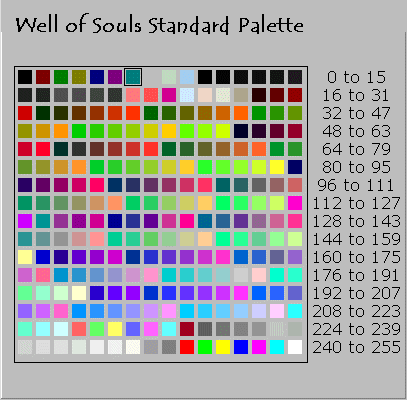
Color tables are used in the ACTOR command, the COLOR command, the SCENE command, and in the MONSTER TABLES. When you assign a skin to an actor or a monster, that skin contains artwork rendered in the 256 colors of the standard WoS palette. Say you had a monster skin which was largely greenish. By assigning a color table, you could use that same skin, but the monster which appeared on the screen might be largely bluish instead. The skin itself hasn't changed, it is just dynamically re-colored on its way to being displayed on the screen.
Most color tables preserve the artistic quality of the skin, it's outline, shadow, and transparency. Some are just plain freaky. The actual effect a color table has on a skin will be influenced by the colors used in the original skin, so a world developer should artfully pick the color table which meets his or her needs.
To color an actor, you add an extra argument to the actor command, as in:
SCENE 3284, "Palace", SCENE, "Throne Room", 0, 0
ACTOR 1, "King", "joshRoyalty", 3, 20, 80, 4
1: Say, %1, do I look my normal color??
In this example, the actor skin "joshRoyalty, frame 3" is recolored using color table 4. Let's pretend this makes the normally rosy cheeks of the king look a bit ill in coloration.
Colors are each made of a combination of 3 pigments: Red (R), Green (G), and Blue (B). A color table translates one color to another by modifying one or more of those pigments.
The available color tables are:
| 1 | R-G swap | red becomes green, green becomes red | ||||
| 2 | R-B Swap | red monster becomes blue, blue monster becomes red | ||||
| 3 | G-B swap | green becomes blue, blue becomes green | ||||
| 4 | G<-R 'yellow-greens' | these tables replace one pigment with another | ||||
| 5 | B<-R 'purples' | blue gets same value as red | ||||
| 6 | R<-G 'khakis' | red gets same value as green | ||||
| 7 | B<-G 'reddens' | blue gets same value as green | ||||
| 8 | R<-B 'green-hulks' | red gets same value as blue | ||||
| 9 | G<-B 'pinkens' | green gets same value as blue | ||||
| 10 | cut red slightly | red component gets dimmer | ||||
| 11 | cut green slightly | green component gets dimmer | ||||
| 12 | cut blue slightly | blue component gets dimmer | ||||
| 13 | dim little <-- good for 'low light' | skin stays same color, but gets dimmer | ||||
| 14 | dim medium | even dimmer | ||||
| 15 | dim high | dimmest | ||||
| 16 | brighten little | skin stays same color, but gets brighter | ||||
| 17 | brighten medium | even brighter | ||||
| 18 | brighten lots | brighter still, getting washed out now | ||||
| 19 | brighten even more | quite bright indeed | ||||
| 20 | brighten super much | almost white, it is so bright | ||||
| 21 | gray out colors and dim it lots | removes color (makes skin B&W). and darkens it | ||||
| 22 | gray out colors and dim it a little | removes color, and darkens just a little | ||||
| 23 | gray out colors but keep intensity | removes color, but maintains intensity | ||||
| 24 | gray out colors and brighten | removes color, and brightens a little | ||||
| 25 | gray out colors and brighten more | removes color, and brightens a lot | ||||
| 26 | invert red | pyschedelic! | ||||
| 27 | invert green | ditto | ||||
| 28 | invert blue | ditto | ||||
| 29 | invert red and green | ditto | ||||
| 30 | invert red and blue | ditto | ||||
| 31 | invert blue and green | ditto | ||||
| 32 | invert all | color negative |
COMPARE A, B
F_COMPARE A,B
IF= @AequalsB
IF> @AisGreaterThanB
IF< @AisLessThanB
The COMPARE command subtracts B from A and saves the result in a special place which doesn't get munged until the next time you use the COMPARE command (or one of the math commands: ADD, SUB, MUL, DIV and MOD) that place is called the CONDITION CODE.
The three IFx commands test the CONDITION CODE and jump to the label if the result was as indicated. So your IFx command doesn't HAVE to immediately follow the COMPARE command, though I suspect it generally will.
Arguments A and B are interpreted as signed decimal numbers. For now you are stuck with constants and cookies. So, you can do:
COMPARE #<cookie>, "2"
COMPARE #<cookie1>, #<cookie2>
For example:
1: Enter a number between 1 and 10.
ASK 30
COMPARE #<lastAsk>, "5"
IF= @labelEquals
IF> @labelGreater
IF< @labelLess
1: Um, I don't think this line can be executed
Of course, you will seldom test all three cases, so this example is silly.
F_COMPARE
Note that COMPARE will treat A and B as if they were integers (by which I mean whole numbers). If your math is uing the F_xxx math instructions to do its work, you should use the F_COMPARE command instead of COMPARE, in order to properly compare small values. For example COMPARE of 1.002 and 1.004 will declare they are EQUAL (because they both start with '1'). But F_COMPARE will correctly notice that 1.004 is larger.
This command starts a COUNTDOWN timer (displayed on the main screen) which counts down to zero. When it hits zero, it disappears. Cool huh?
To make it useful, you need a couple scenes... One which starts the countdown:
...
1: So, you think you have beaten me, Mister Bond?
1: Well, you have only THIRTY SECONDS to get to the missile control shed!
COUNTDOWN 30
1: Muah ha HA, mister Bond!
... and one which which tests it with the 'XP' conditional, as in:
...
IF XP, @youAreTooLate
1: You made it before the countdown finished!
END1: Could you possibly have walked any more slowly?
You can turn the counter off prematurely by setting it to zero ("COUNTDOWN 0"). Also, the countdown automatically terminates if you leave the game, or change characters.
ACTORs in a scene may deliver dialog which is read by the player both in the chat window and also as a little cartoon balloon above the actor's head in the scene.
There are several ways of making your actors talk, but I think I will only document the preferred method, which is to have a line consisting of:
<Actor ID# (0-9)> <colon> <line of dialog>
For Example:
SCENE 48, "Palace", SCENE, "Throne Room", 0, 0
; Define my actors
ACTOR 1, "Billy", "joshMisc", 3, 20, 90
ACTOR 2, "Sally", "joshMisc", 4, 40, 90...
; Let them ramble on
1: Hello, my name is Billy
2: Hello, my name is Sally
1: Sally is my friend
2: Billy is MY friend
1: Sally is very pretty
1: I love Sally
1: But Sally's dad thinks I am creepy.
2: I think Billy is a teensy bit creepy, myself!
Be sure to declare your actors BEFORE you have them say any dialog.
Only actors 0-9 can be made to speak in this way, since the number before the colon can only be a single digit. On the off chance that you need to get some dialog from actors 10 through 15, you have to use the 'current actor' metaphor and provide a current actor selection, followed by unlabeled chat. As in:
SEL <Actor ID#>
' Hello there, see the single-quote at the start of this line?
' It's important. As is the space between it and the first character of dialog
SEL 12
' Now actor 12 gets to talk.
' Isn't the colon way nicer?
SEL 15
' Yes, I think it is MUCH nicer than this crummy way.
But that's clumsy and sucky, so use the preferred way and let actors 10-15 be mute.
Each line of text you put in creates a speech bubble over the head of the actor who said it. Only one actor can have a speech bubble up at a time, so the script will automatically pause before executing the next speech line until the previous bubble disappears. Bubbles disappear after a brief timeout, or can be cleared by right-clicking in them.
Obviously you don't want to cram TOO much into each line, so expect lots of short lines of dialog in a row. The time a bubble will remain, before it auto-pops, depends on how many characters are inside it.
Cute Trick - HOST Chat
By using the code "H:" at the start of the line, you can put words in the mouth of the scene host. So, say your character is returning to a scene after having achieved his goal. The script detects the token meaning he has killed the dragon, so your actor wants to reward him, but has to say something clumsly like:
1: Hail, mighty %1, I see you slew the dragon
How much cooler it is to say instead:
1: Hail, mighty %1, did you slay the dragon yet?
H: Why yes, I *did* slay the dragon!
1: Good show, here's a dollar!
So, in this case the sentence "Why Yes, I ..." appears above the PLAYER'S head, instead of above an actor. It behaves just like a regular actor speech bubble. It's cool.
The percent sign symbol (%) is used as a special character. The number following it lets you stick in real-time information about the current players.
| %0 | speaking character's name | ||
| %1 | server player name (player hosting the scene) | ||
| %2 | client name (each client sees his or her own name) | ||
| %3 | a random insult name "stupid maggoty rat-face" | ||
| %4 | name of the last person to type in chat | ||
| %5 | name of last person who typed YOUR NAME at start of chat line | ||
| %C | class name of scene host ("magic-user") | ||
| %Cn | class name of class n (starting at 1) from world level tables. | ||
| %En | item number of
equipped item in slot n (n=10 for HELMET..) use n=0 to get 'equipped right hand' item ID |
||
| %In | name of ITEM n | ||
| %K0 | Total number of monsters killed by scene host | ||
| %Knn | Number of monster ID nn killed by scene host | ||
| %L | level name of scene host ("emperor") | ||
| %Ln | level name for level n of scene host's class | ||
| %L-1 | level number of scene host ("99") | ||
| %Mn | name of MONSTER n | ||
| %Rn | Random number from 1 to n (n from 1 to 30,000) | ||
| %Sn | name of SPELL n | ||
| %Tn | token name n | ||
| %% | inserts a single visible percent sign |
For example:
1: Hello, my name is %0. Your name is %2. Your host's name is %1
2: I, %0, think you are a %3!
1: I am 99%% sure you are also a %3!
This command is identical to the PARTY command and lets you define what an acceptable party member should look like, and causes players who do not match that condition to be kicked from the party. A world designer would use this command just before executing a GOTO LINK command where only qualified people were allowed to go. Unlike the PARTY command, this one will also eject the non-members from the scene.
As in:
EJECT "C5+T23"
1: now that all those losers are gone, let's have some fun!
This would kick anyone from the party AND THE SCENE who was not class 5 or did not possess token 23. The conditions are the same as for the IF command, but are evaluated AT THE CLIENT. (cool, huh?) I mean each individual player is checked for their OWN copy of token 23, rather than just riding along on the scene host's token 23 (as the IF command does).
To stay in the party,
the condition must evaluate to TRUE for you.
This command terminates the execution of a scene script. It does not, however, take you out of the scene and back to the map. (Use GOTO EXIT for that.)
You are simply left standing in the scene as it was when the END happens. Any actors in the scene will still be standing where they last were.
Please note that you can't use items on yourself (or give things to other players) until the script stops executing. So you have to wait for the scripted portion to END before your sword, spell, or item cursors will begin to 'smoke' again.
SCENE 55, "Palace", SCENE, "Throne Room", 0, 0
ACTOR 1, "Dave", joshVillagers, 1, 20, 80
MOVE 1, 80, 80
WAIT 3.5
OFFER 1, 2, 3, 4
1: I should be there about now
1: You may use your foul potions about.... NOW!END
For your convenience, the button commands: OFFER, OFFER2, and GAME create buttons which continue to work even after the scene script has ENDed. (Only one such button can be active at a time, however, and it will be the last one executed in the scene script.)
This is not a command exactly, but a technique for adding value to your scene. Normally when a scene ENDs, that is the end of it, and no more lines of script code will ever be executed.
However, as of version A63, there is at least one way to wake a script back up, after it has ENDed. (note: it MUST have ENDed before these EVENTs can do their job)
Each Event is defined by a label. The label of the line of script which execution will GOTO when the event takes place.
@eventActorClickN
This event is triggered when the scene host RIGHT-clicks on an actor in the scene. Each actor has a unique ID number and the actual label which is sought will have that ID number at the end. For example, right-clicking on actor 4 will cause the script to resume at label @eventActorClick4.
What you do in response to this event is up to you, but one fun thing to do is use the MENU command to bring up a set of choices appropriate for manipulating the actor in question. Remember than an ACTOR can be anything. A treasure chest, a door, a chair, a fireplace, etc. And MENU options you might provide are OPEN, PICK LOCK, LIGHT FIRE, etc.
For example:
ACTOR 1, "Dave", joshVillagers, 1, 20, 80
ACTOR 2, "Treasure Chest", boxes, 12, 50, 60
MOVE 1, 80, 80
WAIT 3.5
1: The king keeps his treasure in this box
1: If you RIGHT-Click on the box, maybe it will open!@eventActorClick1
; The scene host right-clicked on actor 1, which is "Dave"
1: Hey, don't click on ME!!
END@eventActorClick2
; The scene host right-clicked on actor 2, which is "Treasure Chest"
; Change pose to "Open" treasure chest
POSE 2, 13
1: Hey, lookee there, you got it open!
END
Have Fun!
@eventActorGiveN
This event is triggered when anyone in the scene GIVES AN ITEM OR GOLD to an actor in the scene. Each actor has a unique ID number and the actual label which is sought will have that ID number at the end.
The following cookies can be tested inside of the script's event handler:
- item.goldGiven (# of gold pieces given, or 0 if it was an item)
- item.id (ID # of item given, or 0 if gold was given)
- If it was an item which was given, then all the item.X cookies can be used to fetch details about the item.
@eventActorAttackN
This event is triggered when anyone in the scene attacks an actor in the scene. Each actor has a unique ID number and the actual label which is sought will have that ID number at the end. This reports physical attacks only. Enchanted swords, for example, actually cast spells and are reported via eventActorSpellN instead
The following cookies can be tested inside of the script's event handler:
- item.id (ID # of equipment used in attack)
- the item.X cookies will reflect details about the item used.
@eventActorSpellN
This event is triggered when anyone in the scene casts a spell on an actor in the scene. Each actor has a unique ID number and the actual label which is sought will have that ID number at the end. This includes all forms of spells, (painful, healing, disease, and curing) so you will need to check the spell ID to test for particular spells, and the individual spell attributes to distinguish element, painfulness etc.
The following cookies can be tested inside of the script's event handler:
- spell.id (ID # of spell which was used)
- the spell.X cookies will reflect details about the spell used.
@eventHostGive
This event is triggered when the host in the scene GIVES AN ITEM OR GOLD to the host of the scene. Marginally useless.
The following cookies can be tested inside of the script's event handler:
- item.goldGiven (# of gold pieces given, or 0 if it was an item)
- item.id (ID # of item given, or 0 if gold was given)
- If it was an item which was given, then all the item.X cookies can be used to fetch details about the item.
This command causes the specified actor to turn to look a particular direction (it only works if the actor is standing still when you give the command. Otherwise an actor always faces the direction they are walking)
Face Direction Codes:
| 0 | Face Left of Screen | |||
| 1 | Face Right of Screen | |||
| 2 | Face Scene Host | |||
| 3 | Face away from Scene Host | |||
| 4 | Turn Around (face other way) |
SCENE 55, "Palace", SCENE, "Throne Room", 0, 0
ACTOR 1, "Dave", joshVillagers, 1, 20, 80
FACE 1, 2
1: Hello, mighty warrior. I have a great need
WAIT 3.5
; Turn away for dramatic effect
FACE 1, 3
1: No, I couldn't ask that much of you...
WAIT 2.0
; turn back towards scene host
FACE 1, 2
1: Oh, I might as well.. would you PLEASE wash the dishes?!END
This command plays out a monster fight within the scripted scene itself. The next scene command is not executed until the results of the fight are known (all heroes dead or all monsters dead). At that point the WIN and LOSE "IF" conditionals will work.
You can call out a particular collection of monsters via their IDs from the MONSTERS table, or you can have monsters selected randomly from the current map area monster group. If you provide no arguments, or an asterisk, then the fight will be populated by monsters 'near you on the map'
After the fight, the WON conditional will be true if any member of your party still lives. While the ALIVE conditional will only be true if the scene host is still alive.
For example:
SCENE 378, "Cave", SCENE, "Hidden Cave", 0, 0
; Define my actors
ACTOR 1, "Zor", evilPeople, 1, 50, 50
1: Prepare to die, %2, you %3!
FIGHT 23,12,12
IF WON, @youWon
1: I knew you would lose, you %3!
END1: Big deal, you won, so what, who cares.
So here we create 'Zor' in the top center of the screen and he insults us. Then 3 monsters appear as in a regular fight scene (with Zor still standing there watching us). We get one monster #23, and two monster #12s (as defined in the MONSTERS table)
After the fight, if the player wins, we jump to label '@youWon' and graciously concede defeat. Otherwise we execute the line following the IF and brag a little, then END the scene.
Note that this scene now has two END commands in it. That's OK. The first one we execute ends the scene.
Stupid FIGHT tricks:
Sticky Fights:
Use the opcode FIGHT2 for exactly the same effect, except the scene host is also 'stuck in the fight (similar to a PK Attack) until they stand still without fighting for 20 seconds or so (this is about as close to a forced fight to the death as the game gets)
Mercenaries:
If you call out a monster by ID, but add a minus sign, as in:
FIGHT 1, 2, 3, -4
Then that monster will fight on your side (in this case monster ID 4 is the helper against 3 evil monsters)
Mixed Stuff to The Max:
If you include a '*' as one of the monster IDs, it means "also use monsters from the map", so:
FIGHT *, 1, 2, 3
Means you will have a fight with monsters 1, 2, and 3 PLUS whatever a normal fight at this location might have had.
Starting Locations For Monsters:
You can include an optional .x.y argument to the monster number, which specifies the 0-100 coord on screen for the monsters starting location (in this case the monster will appear at that location immediately and not 'walk on screen') This is useful for giving the illusion of an ACTOR turning into a monster at the same location.
FIGHT 1.50.75,2.25.67,3
Means monster 1 will start at position (50,75) and monster 2 will start at (25,67) and monster 3 will just walk on in.
Pet-Hating Monsters:
You can add monsters who will only fight pets (well, any human-friendly monsters in the scene) and not attack humans. Do this by adding a plsu sign in front of the monster.
FIGHT +23
This monster will only attack human-friendly monsters in the scene (pets and mercenaries). The fight cannot end until all the pet-hating monsters are dead.
Scene 2 is the FIGHT SCENE:
I hope I am not lying when I say that the FIGHT command in SCENE 2 is what controls all standard map monster fights. (the kind you get drawn into when hunting or walking the map). So anything clever you do in that scene will affect all monster fights. So, you could check what map you were on, what tokens the player had, their spiritual alignment (maybe) etc, and then populate the fight accordingly. This was my intention, in any case, though I never had the courage to try anything radical.
Initial Facing Direction
When a monster enters the scene, it starts off 'facing' either or right or left (and if it moves, it will turn to face the direction it is moving). You can override the default facing direction through another dotted argument
monsterId.X.Y.facing
where a facing value of 0 means "facing to the right" and 1 means "facing to the left"
Removing All Monsters from the Scene
So, you just did a FIGHT
scene, it ended, and now you want to remove any remaining
monsters from the scene (enemy or friendly, but not
pets). Use "FIGHT 0"
Note that if you had a friendly in the scene and the
fight ended, and you use the FIGHT command to add more
monsters (second wave), your pal gets to stay.
Identical to the FIGHT command, but the fight is 'sticky' in the sense that the player cannot exit the fight until they either win, die, or have 'stood still' (taken no action) for several seconds (around 20 seconds).
This is intended for "Big Boss" fight scenes, where the player is to incur some risk.
This command sets the effective map flags for the rest of the scene. When you leave the scene, the flags revert to their appropriate value (set by the +MAPS table for each map).
This allows you to have a scene which is a little different that what would normally be possibly on a given map, without affecting the map itself.
Map flags can be added together for cumulative effect, though some flags will make no sense within a scene.
| 0 | 0x00000000 | Revert to actual map flags | ||
| 1 | 0x00000001 | enables pet vs pet battles (but protects players from pets) | ||
| 2 | 0x00000002 | enables pets to be used against other players or pets (if pkers or no safehaven) | ||
| 4 | 0x00000004 | enables "no protection from PKer" | ||
| 8 | 0x00000008 | enables "no PKing allowed here at all" | ||
| 16 | 0x00000010 | enables "LADDER" reporting. (PK kills on this map are reported to ladder server) | ||
| 32 | 0x00000020 | enables "show all link names." Normally link names are hidden until after first use of link. | ||
| 64 | 0x00000040 | disables "Shadows" under heroes (and monsters) on map and in scenes of that map. | ||
| 128 | 0x00000080 | disables the use of pets (cannot summon them) on this map. | ||
| 256 | 0x00000100 | disables eavesdropping to and from players on this map. (you can still whisper, shout, etc.) | ||
| 512 | 0x00000200 | designates the map a GUILD HALL map. (not sure what this means yet...) | ||
| 1024 | 0x00000400 | Prevents Humans from being able to damage monsters or pets | ||
| 2048 | 0x00000800 | NO_REWARD - No XP, GP, or items given to surviving players after fight. | ||
| 4096 | 0x00001000 | NO_HEAL - Healing spells and potions provide only 1 unit of HP | ||
| 8192 | 0x00002000 | NO_TICKETS - Tickets won't work here | ||
| 16384 | 0x00004000 | NO_MINI_MAP - Upper right mini-map is uninformative here. | ||
| 32768 | 0x00008000 | NO_STUN - The non-buff disease spells will not work here (stun, sleep, paralyze, etc.) | ||
| 65536 | 0x00010000 | NO_BUFF - The Buff/Debuff disease spells will not work here | ||
| 131072 | 0x00020000 | NO_PKREZ. PKers cannot use resurrection spells on others | ||
| 262144 | 0x00040000 | MAP_FLAG_HIDE_LINKS. don't show white link boxes on minimap until visited | ||
| 524288 | 0x00080000 | MAP_FLAG_NO_WAYPOINTS disable automatic waypoint calculations (good for mazes) |
Use "FLAGS 0" to restore the flags to their natural map values after using the FLAGS command. They will also be restored automatically when you leave the scene. Use the "0x........" form if you are more comfortable merging flags together as a hexadecimal value.
This command causes the scene's FX to change. An 'Effect' is something which is done to the background JPEG in real time. The most amazing effect is the now classic lakeside ripple which makes it look like there is water in the foreground.
Effects last for the duration of the scene, or until they are changed. Some spells modify the scene's FX and Weather for the duration of the spell cast.
For example:
SCENE ...
| 0 | No effects | |||
| 1 | Underwater ripple (as though viewer is under water) | |||
| 2 | Lake ripple (as though the bottom 30% of the scene is a lake reflecting) | |||
| 3 | Video (every other line is black, giving a 'coarse video' quality | |||
| 4 | Jitter (random vertical jitter) | |||
| 5 | EarthQuake |
To stop all FX, set the FX to 0.
Similar to the OFFER button (and you cannot use both OFFER and GAME in the same scene), this results in a GAME button appearing for the player (along the bottom of the screen, in the same spot where the OFFER commands would display the SHOP button).
For example:
SCENE ...
1: So, you wanna play BlackJack?
GAME 4
Pressing that button brings up a mini-game for the player to enjoy while in the scene.
| 1 | The slobber slots machine | |||
| 2 | The Monster Racer | |||
| 3 | The Search for Pi at Home | |||
| 4 | Blackjack | |||
| 5 | Pokegatchi Training Center (same as 'train pet' on Equip Screen) | |||
| 6 | Asteroids (aka Big 'Ol Space Rocks) | |||
| 7 | Stock Market Game (Dow Bones) | |||
| 8 | Quadris (Tetris Clone) |
These are all, so far, solo games (since WoS itself is the multiplayer game), but you can enjoy them in the presence of other players.
This command gives the specified object to all current members of the scene (um, even dead ones I think). Objects are specified the same as in the "IF" command conditionals with a letter followed by a number. Unlike the IF command, however, you can only give one thing per line. (no plus and minus signs please). The HOST form gives the item only to the scene host. The PARTY form gives the item to all member's of the HOSTs party.
SCENE 78, "Palace", SCENE, "Throne Room", 0, 0
; Define my actors
ACTOR 1, "King", "joshMisc", 3, 20, 90
ACTOR 2, "Queen", "joshMisc", 4, 40, 90...
; Deliver the good news
1: You have impressed me, young %1
2: Oh my, yes!
1: You are worthy of bearing the %I184!
GIVE I184
2: And you have achieved goal %T6
GIVE T6
1: Now leave us!
2: Wait, accept this money, as well!
GIVE G1000
1: Was that necessary, dear?
2: It's MINE!
To get an item back, use the TAKE command with the same argument. HOST_GIVE is identical, but only the scene host receives it, instead of everyone in the scene.
| Gn | N pieces of gold | ||
| Hn | n health points (up to max), won't resurrect dead player | ||
| In | item N | ||
| L1 | Resurrects Dead Player (cannot be 'Taken') | ||
| Mn | n magic points (up to max) | ||
| Sn | spell N | ||
| Tn | token N | ||
| Zn | trophy N |
Probably the primary use of the GIVE command is to give TOKENs which track a player's progress through a quest. The scene script can both give these tokens, as well as test for their presence with the IF Tn command. One token might be given when the player first hears of a quest, another when they achieve the goal of the quest, and a third when they have been rewarded.
For example, here is one scene of such a quest.
SCENE 78, "Palace", SCENE, "Throne Room", 0, 0
; Define my actors
ACTOR 1, "King", "joshMisc", 3, 20, 90
; Tell Quest, if first visit
IF T21, @hasHeardQuest
1: Greetings, %1, I have a small quest for you
1: There is a dragon I need to have killed.
GIVE T21; If dragon still lives, remind player of quest
IF T22, @killedDragon
1: I see you have not yet killed the dragon, begone!
1: I'm sure I mentioned it!
1: I think the dragon is in Smugglurz Cove!
; Player will get token 22 in another scene, when they kill dragon.
END; Give reward, if we haven't already
IF T23, @hasGottenReward
1: Hey, you killed the dragon, accept this gold from me, please!
GIVE G100
GIVE T23
END1: Hey, I already paid you for that!
1: What have you done for me lately?
ENDTOKEN 21, "The King mentioned that a dragon needed to be killed."
TOKEN 22, "You have killed the dragon."
TOKEN 23, "The King rewarded you handsomely for killing the dragon."
So, when we visit this scene for the first time, the king checks our pocket for token 21, and if we don't have it he gives it to us and tells us about the dragon, then ends the scene.
The next time we visit the scene, we have Token 21, so we jump to @hasHeardQuest where we are checked for token 22 (which we get in some other scene after killing the dragon). If we have T21 but we do not have T22 then the king just reminds us of our quest and ends the scene.
When we finally enter the scene with token 22 (killed the dragon), we jump to @killedDragon and the king rewards us with 100 gold pieces (wow!) and gives us token 23 so as to remember we already were rewarded.
The next time we enter the scene, we have T21, T22, and T23 so we hop all the way to @hasGottenReward and the king yells at us for being freeloaders.
Giving Several Items at once.
If you add a <decimalPoint><Qty> to the end, you can give several of the same item in a single command. For example:
; Give them 10 of item 23, whatever that is.
GIVE I23.10
This only works for items, not spells, money, etc.
This command unconditionally jumps to the specified label and then executes the script command on the line following that label. Be careful not to create infinite loops.
@labelNames
Starting a line of a scene with an @ symbol makes that line a 'label.' Spaces are not allowed in label names. Just use letters and numbers with a single @ in front. The 'scope' of the label is the SCENE it is inside of. So you can use the same label names in different scenes without fear. You cannot jump from one scene to the middle of another. However, the GOTO SCENE command will let you jump from one scene to the beginning of another scene.
Note: the label must be on a line by itself - do not place other scene commands on the same line
Labels are also used by the IF command, which will jump to the label only if a specified condition is true. You might never need an unconditional GOTO since it is easy to structure your scripts to depend entirely upon the IF conditional jump.
SCENE ...
command1
command2@thisIsALabel
command3
command4GOTO @thisIsALabel
This scene will execute commands 1 and 2, then repeat infintely executing commands 3 and 4. This is, of course, bad, and to be avoided.
Note: Labels are NOT case-sensitive, so "@hello" is the same as "@HeLLo"
This command causes the players to be booted from the scene and back to the map, as if the scene host pressed their (camp) EXIT button.
SCENE 18, "Palace", SCENE, "Powder Room", 0, 0
; Define my actors
ACTOR 1, "Lady in Shower", "joshMisc", 3, 20, 90
; Be outraged!
1: Who are you!
1: Get out of here, pervert!
; Boot Player from Scene, back to map
GOTO EXIT
At first, you might be confused by the difference between END and GOTO EXIT, but the difference is quite apparent. When the END command is executed, the script engine ceases operation, but you are left in the scene, staring at whatever debris is left over from the script engine's execution.
This command actually moves the character to a position just above the specified link on the specified map.
For example:
GOTO LINK 0, 0
On evergreen, this would take you on top of the gateway link on the main map.
The third argument (optional dropin code), if present and non-zero, causes the player to drop 'into' the link after arriving. What happens after that is a function of the link in question (might do nothing, might go into a scene, might link to a whole different map)
So:
GOTO LINK 0, 0, 1
On evergreen, this would move the player to just above the gateway link on the main map, and then drop the player INTO the gateway (scene). When the player exited that scene, they would be on the main map just above the gateway.
This command lets you jump the player from the current scene into a new scene (which then starts at its beginning.)
However, when you exit the scene, you will be at your original location (the place where you dropped into the original scene). This command never changes your current map position.
Jumping to a non-existent scene number may not fail gracefully.
This is a big deal, so use the power wisely. You might just need a GOTO or IF jump instead of a full-fledged GOTO SCENE. Use this command when you have a significant bit of scripting which you would like to use in more than one place.
This command lets you open a web page in the middle of your scene. The script execution is then paused until the player presses the "Return To Game" button on the web panel.
The page name can be one of two forms: Local or Web. If it begins with "http://" then it is assumed to be a full URL and the appropriate page will be opened on the world wide web.
Otherwise, the name is assumed to be a path and filename to an html file in your world's HTML folder. (You can have sub-folders in your world's HTML folder, but it is your responsibility to make sure all necessary files are properly located for your page to work.)
This feature requires WoS version A62 or later.
For Example:
SCENE ...
1: My father gave me this special book on my tenth birthday
1: I would like you to read it
WAIT 2
HTML "books\tenth.htm"
; Actually opens c:\WoS\Worlds\YourWorldName\HTML\books\tenth.htm
; ... unless that file doesn't exist in your world.
; This next command is not executed until player closes the web window.
WAIT 2
1: What do you think? Am *I* that hero?
This command checks to see if the condition given is TRUE and if so, it jumps to the specified label. Otherwise it just continues with the next scene command.
The condition is specified as a list of IDs separated by plus and minus signs. The IDs each start with a unique letter possibly followed by a number. For example "I34" means "Item 34" It is TRUE if the player hosting the scene has item 34 in his or her pocket. "T12" means "Token 12" and usually you will check the presence of tokens to decide which path to take through your scene.
If you need two conditions to both be true in order to jump to the label, then list both IDs and separate them by a plus sign. If you use a minus sign in front of an ID, then it is true if the player does NOT have that ID.
For example
IF T12+I15-S22, @label
means: "If the player has Token 12 AND item 15, BUT NOT spell 22, then the condition is true and the jump to label will occur"
For example:
SCENE ...
command1
command2
IF T3-T4+T5, @label2
GOTO label1command3
In this case, the scene starts by executing command1, and then gets stuck in a loop, executing command2 over and over until the condition is true, allowing it to jump to label2 and execute command3 then leave.
The condition we are looking for is "Player has token3 and token 5, but NOT token 4" (and again, only the player who is hosting the scene is checked. tokens and items in the possession of other players in the scene are not important)
Remember, all the terms of the equation must be true for the jump to label to occur. The minus signs just invert the sense of their particular terms. Always think of it like this:
IF (thing1 AND thing2 AND thing3 AND... thingN) GOTO @label
"OR" Conditions
By popular demand, as of version A84, your conditional expressions can include 'or' clauses using the 'vertical pipe' character: '|'
So now you can have compound statements like:
IF T1+T2|T3-T4|T5 @label
This example will go to @label if:
They have T1 AND T2
or
They have T3 and NOT T4
or
They have T5
evaluation proceeds left to right and stops with the first clause which comes up TRUE. All normal conditionals work within the clauses (I just used 'T' because it's easy to type :-)
| ALIVE | player is alive | |||
| Cn | true if player is of character class 'n' | |||
| DEAD | player is dead | |||
| Enn | Player is EQUIPPED with item nn (not just in possession of one) | |||
| Fnn | true if player is on a map with this 'map flag' set. (nn = 1, 2, 4, 8, 16, 32, etc.) | |||
| Gnn | true if Player has at least nn gold pieces | |||
| GS | true if Player is a Golden Soul | |||
| Hnn | true if this CHARACTER is nn hours old (or older) | |||
| Inn | player has item nn (from ITEMS table) Use Inn.mm to check if they have mm or more of that item | |||
| Jnn | player has completed mission (JOB ID) nn | |||
| JQnn | player has qualified to start mission (JOB ID) nn | |||
| JAnn | player has accepted mission (JOB ID) nn (but not yet finished it) | |||
| LOSE | player lost last fight in this scene (all members of party died) | |||
| KBn | player has been killed at least once, by monster ID = n | |||
| KBn.x | player has been killed at least x times by monster ID = n | |||
| KMn | player has killed at least one monster 'n' (monster ID = n) | |||
| KMn.x | player has killed at least 'x' monsters of type 'n' | |||
| M0 | true if player is a CHEATER character (m-zero) | |||
| M2 | true if player character has played in a modified world before. | |||
| M4 | true if player has ever turned off the "avoid modified quest files" option. | |||
| NO | player answered NO to last ASK scene comman | |||
| P0 | true if player is a PLAYER KILLER (p-zero) | |||
| Pnn | true if player is a PLAYER KILLER *and* has killed other players at least nn times. | |||
| Qword | player answered 'word' to last ASK scene command (use ^ if your word has spaces.. "Qbutter^fly" matches "butter fly") | |||
| Rnn | Random Number (nn = 00-99, represents percent chance of TRUE) | |||
| Snn | player has spell nn (from SPELLS table) | |||
| Tnn | player has token nn (from TOKENS table) | |||
| Vnn | true if player's level is greater than or equal to nn | |||
| WIN | Player won last fight in this scene (after FIGHT scene command, at least one party member lived) | |||
| XP | true if the COUNTDOWN TIMER has EXPIRED (use the COUNTDOWN opcode to start the timer) | |||
| YES | player answered YES to last ASK scene command | |||
| Znn | true if player has trophy nn. Use Znn.mm to see if they have mm or more of trophy nn | |||
| #nn | true if player is currently on map nn (as defined in MAPS table) |
This command locks (or unlocks) the current scene. While a scene is locked, no new players may enter it. The lock does not prevent party members from following you into a scene.
For example:
; Lock the scene, keeping newcomers out
LOCK 1
1: Now, we are alone!
; Un-lock the scene, so newcomers may visit
LOCK 0
1: Shhh, someone might come in at any second!
One perverse use of this command would be to add an ACTOR, which looked like a padlock, to the standard camp scene, and then let a right-click EVENT on that actor toggle the lock state of the camp.
ADD cookieName, <amount>
SUB cookieName, <amount>
MUL cookieName, <amount>
DIV cookieName, <amount>
MOD cookieName, <amount>F_ADD cookieName, <amount>
F_SUB cookieName, <amount>
F_MUL cookieName, <amount>
F_DIV cookieName, <amount>
F_MOD cookieName, <amount>AND cookieName, <amount>
OR cookieName, <amount>
XOR cookieName, <amount>
NOT cookieName, <amount>
These commands take an <amount> (an integer, whole number) and operate it with the named cookie, storing the result inside the cookie itself. The result of each operation is also an integer and is rounded off or truncated as necessary.
ADD cookieName, "3" <-- add 3 to cookie
SUB cookieName, "5" <-- subtract 5 from cookie
MUL cookieName, "6" <-- multiply cookie by 6
DIV cookieName, "11" <-- divide cookie by 11
MOD cookieName, "10" <-- modulus operator (remainder from integer division)The F_ versions are the same, but keep the result as a high-precision floating point value (1.23456...) as opposed to rounding/truncating to an integer (1). If you need to directly compare two floating point numbers, use the F_COMPARE command instead of the COMPARE command (see 'Compare Commands' for details)
The logic commands may not make sense to you unless you are already into computers, but they provide 'bit-wise' logic functions on 32 bit binary values (which you express in decimal)
AND cookieName, "8" <-- AND 8 with cookie (leaves cookie set to 8 or 0)
OR cookieName, "16" <-- OR 16 with cookie ('sets' binary bit ..0010000 of the cookie)
XOR cookieName, "2" <-- XOR cookie with 2 ('flips' the ..000010 bit)
NOT cookieName, <-- (no arg) does a one's complement. flips all the bits
These operations also set the CONDITION CODE, as if you had followed each by a COMPARE #<cookieName>, "0"
For example:
SET A, "5"
SUB "5"
IF= @AisNowZero
IF> @AisNow>Zero
IF< @AisNow<Zero
You can say either MOD or MODULUS in your scripts, by the way.
The modulus operator may give unexpected results for negative numbers as that is not what it is intended for. So it is really only the 'division remainder' for positive numbers, as in:
11/10 = 1 with remainder 1
-11/10 = who knows.
11/-10 = equally cryptic.
I am just passing your wishes along to the c compiler's implementation of the "%" operator (except for mod 0, that I am ignoring). Now, just because you CAN do basic calculator math in WoS, doesn't mean your world SHOULD do calculator math...
The main justification for these functions is for looping, as in:
;Note, 'loop' is an arbitrary cookieName and has no special meaning in itself
;but here we initialize cookie 'loop' to the number of times we want to repeat
SET loop, "10000"1: I know a song that gets on everybody's nerves!
;subtract one from 'loop' and set the condition code as a result
SUB loop, "1"
;test the condition code, and branch back to the label if it is greater than zero
IF> @repeat
(Available in WoS A63 and later) This causes a popup menu to appear for the scene host. You specify what text goes in the menu. You also provide a label to go to for each possible menu selection. If the host picks one of the menu choices, execution continues at the associated label in the scene's script (just like a GOTO that label)
If the user dismisses the menu without choosing one of the menu choices, execution continues with the next line of the script.
For example:
;Let's warn the user that a menu is about to appear
1: What is your favorite color?
; Give them time to read the warning
WAIT 1
; Now bring up that MENU!
; It has two choices
MENU "red=@pickedRed", "green=@pickedGreen"
; We only get here if neither choice was picked
1: What, you liked neither red nor green?
...; I guess they picked "green" from the menu
1: I like green, too!
...; I guess they like red better
1: Red is the DEVIL's color!
...
The MENU command will not terminate until the user picks something from the menu, or dismisses it. Keep your menus short. I'm not sure exactly how many entries you can have... perhaps 15. Each menu choice is described by a quoted string, like:
"Hey Bob!=@pickedHeyBob",
Don't forget the quotes. The "=" in the middle separates the label "@pickedHeyBob" from the menu text "Hey Bob!"
CheckMarks
To add a checkmark on a particular menu item, precent the text with a slash, as in:
"/Enable Happiness=@toggleHappiness"
Of course, you probably want that / to come and go based on a cookie, and I leave that logic up to you. If the slash is there, the checkmark will be there, otherwise it won't.
Maybe later I'll let you include separators, and disabled menu entries by using funky labels.... maybe
Please see the page I may not have written yet about MISSIONS. Basically a mission is a very simple collection quest. For example:
"Oh help us hero, our town is plagued by vampires, please bring us 50 vampire heads to prove that you are our friend and then we will reward you with something."
The mission system allows you to define entire missions with a short list of parameters stored in your world's "mission.ini" file. Check out the evergreen mission.ini file for more details.
But for our purposes here, each mission has a unique "Job Number" (so why did I call them missions? It's a long story). The MISSIONS command just adds a button to the scene (like the OFFER command creates a SHOP button), only this button, when pressed, brings up the Missions Dialog where the list of offered missions is shown. Missions can have entrance requirements, so only the jobs for which the host is qualified will appear on the list.
; Let's offer him some missions
MISSIONS 1,2,3,4,5,6
So, if he only qualifies for missions 4, and 6, then he will only see two entries in the list. The hero may then ACCEPT a mission, at which time it appears in his Book of Missions as a mission in progress. He can also ABANDON a mission. Ultimately he can COLLECT REWARD when the mission is completed. He does NOT have to return to the scene which offered the mission in order to collect the reward.
This command competes with the OFFER command, so a scene cannot have both a missions button AND a shop button. (The GAMES button also competes).
This command tells a previously declared ACTOR to move to a new x, y position on the screen. This is a real time action and it may take them awhile to amble on over. You might need a WAIT command if you want the next scene command to not take place until after they get there.
The optional <mode> value controls the nature of the motion. If you don't specify it, it will use mode 0 (normal walking). mode '1' will cause the actor to instantly teleport to the new x,y location (A good way to get a character offscreen in a hurry)
For example:
SCENE 189, "Palace", SCENE, "Kitchen", 0, 0
; Define my actors
; Actor 2 starts out far off screen
ACTOR 1, "Chef", "joshMisc", 3, 20, 90
ACTOR 2, "Hungry Man", "joshMisc", 4, 200, 90
MOVE 1, 50, 50
; actor '1' walks leisurely to center of screen
MOVE 2, 0, 0, 1
; actor '2' teleports instantly to upper left of screen
Here we start out with ACTOR 1 visible on the left side of the screen and actor 2 is completely invisible (far off screen to right). As of version A74, we now support the following 'mode' values:
| 0 | Actor walks at normal speed |
| 1 | Actor warps instantly to destination |
| 2 | Actor walks at 2x normal speed |
| 3 | Actor walks at 3x normal speed |
| 4 | Actor walks at 4x normal speed |
| 5 | Actor walks at 5x normal speed |
Special Actor ID Moves Host
If you use 'H' for the actor ID, the move command will cause the scene host to move to the specified location. This is non-binding, in the sense that the host can click to move elsewhere, but it can be nice for things like this:
;...
1: Approach the king!
MOVE H, 20, 80
This command causes new music to play (the music is looped so as to play over and over again).
SCENE 189, "Palace", SCENE, "Kitchen", 0, 0
; Define my actors
ACTOR 1, "Maestro", "joshMisc", 3, 20, 90
1: With a wave of my hand, I change the background music!
; Change the scene's background music to something classy
MUSIC "chopin.mid"
You don't actually need the ".mid" extension here, but it might help you to leave it in. Only .mid files are supported for scene music.
The file in question should be located in your World's MIDI folder. If it is missing, then the root WoS MIDI folder is searched instead. If it isn't there either, you get whatever you deserve :-)
To silence the music, do this:
MUSIC "#silence"
Displays a SHOP button which, when pressed, offers the specified items for sale. Normally a scene does not have a SHOP button until you execute an OFFER command. The OFFER command comes in two flavors, differing in the way you specify the list of items available in the store.
The OFFER command takes a simple item list and is best used for specialty stores offering a limited number of items, as in:
SCENE 183, "Palace", SCENE, "Office", 0, 0
ACTOR 1, "Shopkeeper", "joshMisc", 3, 20, 90
1: I have only these items. Buy them or leave!
OFFER 4, 12, 103, 11, 22, 7, 15
Only those seven items will appear when the player presses the SHOP button. Item numbers match to entries in the ITEMS table.
If your scene executes more than one OFFER or OFFER2 command, only the most recently executed command will be in effect. (I mean to say, you can't add items to an existing shop by calling OFFER a second time.)
Displays a SHOP which offers all defined items between the two levels (with non-zero prices). The optional third argument limits it to items of the specified class.
note: only the first 50 or so qualifying items will make it, so don't try for one store to sell EVERYTHING
This newer form of the OFFER command is good for shops which provide a large number of items of a particular class. For example, all boots between level 5 and 10 would be:
OFFER2 5, 10, 20
Where the class number (20 for boots) is set in the ITEMS table 'class' column.
You can have your store sell several classes of items at the same time, by including the correct three numbers for each class: <minLevel>,<maxLevel>,<itemClass>
As in:
OFFER2 5,10,20, 5,10,21, 1,10,22
This would offer all class 20 items between levels 5 and 10, all class 21 items between levels 5 and 10, and all class 22 items between levels 1 and 10. (the level limits are inclusive)
This command lets you define what an acceptable party member should look like, and causes players who do not match that condition to be kicked from the party. A world designer would use this command just before executing a GOTO LINK command where only qualified people were allowed to go.
As in:
This would kick anyone from the party who was not class 5 or did not possess token 23. The conditions are the same as for the IF command, but are evaluated AT THE CLIENT. (cool, huh?) I mean each individual player is checked for their OWN copy of token 23, rather than just riding along on the scene host's token 23 (as the IF command does).
To stay in the party,
the condition must evaluate to TRUE for you. Note that if
you don't use some command like GOTO LINK after this, you're sort of
wasting it. It won't boot people from the scene who are
not in the party after this, so unless the party moves on
to a new location, you may not notice right away that
anything happened.
Please see the description of the PUSH command. This pops the topmost value off the cookie stack and puts it into the specified cookie. Do NOT use the #<wrapper> unless you really mean that the wrapped cookie contains the NAME of the cookie into which the popped value should be place.
And I very much doubt that you really mean that.
If it helps, you can think of this command as meaning:
SET cookieName, <top most value of cookie stack, and remove value from stack>
No, I suppose that doesn't really help all that much. Take comfort in the fact that you are unlikely to ever need to use the cookie stack.
If the stack is 'empty' and you POP anyway, you will get the value "" (empty string, which will seem to be 0 if you are treating the cookie as a number).
When you created the ACTOR, you specified both an image file name, and an offset (pose) to a particular image of that file's filmstrip. If you have several images of the same character in that file, this command lets you flip between them for whatever reason you like. For example, I use it to 'morph' the evil witch into her true self.
The pose you specify will be held until you specify a different one. HOWEVER, as of version A30, you can specify two additional poses (3 in all, pose1, pose2, and pose3).
If you specify the additional poses then the actor will cycle between pose1 and pose2 for approximately equal (but random) amounts of time, with occasional brief displays of pose3. For example, pose1 and pose2 might be a frog looking in different directions, while pose3 shows his toungue flitting out. You cannot currently control the timing, so for critical animations, just use a sequence of POSE commands with appropriate WAIT commands. The advantage of the multi-pose POSE command is that the animation continues even after the script END command, and requires no special scripting.
The PUSH and POP commands are used to tuck cookies away in a safe place when you are going to be doing a lot of CALLs which you know will modify their contents in the course of doing their job, and you want to be able to bring back the original values.
You may never need the cookie stack at all. And remember that the cookie stack starts off empty at the beginning of your scene. It is NOT a long-term storage location.
If you are unfamiliar with the use of 'stack' in computer terms, the following is probably an insufficient explanation, but here goes. The metaphor generally used is a 'stack of plates'. You can add a new plate to the top of the stack (push) and you can pull the top plate off of the stack (pop), but you can't just pull some plate out of the middle of the stack, without things crashing.
Likewise, the stack can be empty (after popping the last plate from the stack), and full (when it hits the ceiling?). IN Quest a stack is full when it has a large number of cookies in it. I won't say how many. It should be enough unless you are being crazy.
To add a cookie to the top of the stack, do this:
PUSH cookieName <-- do NOT use the #<wrapper>
Note that the CONTENTs of that cookie are pushed on the stack. The cookie itself is not changed. To pull the top most cookie value off of the stack and stick it into a cookie, do this:
POP cookieName <-- do NOT use the #<wrapper>
And this WILL replace the contents of cookieName with whatever value was on the top of the cookie stack. In general, if you push N things onto the stack, you will later pop N things off, and you will need to do the popping in the opposite order to the pushing. For example, lets assume the stack is empty and we push three cookies to it.
; Fill some cookies for our example
SET A, "Original Contents of Cookie A"
SET B, "Original Contents of Cookie B"
SET C, "Original Contents of Cookie C"; Now push them on the stack in order
PUSH A
PUSH B
PUSH C
If we could see our invisible stack of dishes right now, it would look like this:
"Original Contents of Cookie C" <-- last one pushed is on TOP
"Original Contents of Cookie B"
"Original Contents of Cookie A" <-- first one pushed is on BOTTOM
Now pretend do something to damage the contents of cookies A, B, and C, and then want the original values back. We use the POP instruction. The first POP will pull the TOP value off the stack ("original contents of C") and since our goal is to get that back into cookie C, we better do the pops in this order:
POP C
POP B
POP A
So, stare at that for awhile until it makes sense to you. Then you will be a stack master. Stacks can be used for many things, and one silly one is to intentionally mess with the push/pop order so as to intentionally move values around between cookies.
Again, you might never need the cookie stack. If you PUSH too much on the stack, it will just start throwing away your PUSHes... um.. or maybe the pushes will replace the top most stack value. Well, you get chaos, which is what you deserve! It is your responsibility to balance every PUSH with exactly one POP.
Please see the CALL command for the proper use of this command. It causes 'control to be returned to the line after the CALL instruction which invoked the function in the first place'
But just as the CALL instruction will optionally pick up values for cookies "arg0" through "arg9" for you, the RETURN instruction will also set those same cookies for you if you like. For example:
CALL @GetListOfFoods
1: My favorite foods are #<arg0>, #<arg1>, and #<arg2>
...@GetListOfFoods
; I could do some computation here, but I already know the answer
; this form of RETURN will set cookie arg0=apple, arg1=butter, arg2=cheese before returning
RETURN apple, butter, cheese
So, in this case we ultimately see actor 1 say "My favorite foods are apple, butter, and cheese"
This command defines the beginning of a scene, and its <Scene ID#> which must be unique. Scenes must be defined within the +SCENES table of the QUEST.TXT file. The scope of a scene begins with this command, and ends with the SCENE command of the next scene in the table, if any.
The arguments provided with the SCENE command set up the initial ambient environment of the scene, but can mostly be subsequently changed by other commands.
The SCENE command has the following arguments:
<ID #>
Every scene must have a unique scene number. Link points on maps can call out specific scene numbers. In addition to that several scene numbers are special:
| Scene 0 | Is always the intial well of souls (where you incarnate) | |||
| Scene 1 | The standard 'camp' scene (links can override details) | |||
| Scene 2 | The standard 'fight' scene (links can override details) |
It is advised that you treat scene numbers 0 through 9 as 'reserved' to avoid conflicts with later developments
<bkgnd>
The background JPG file (from the SCENES folder of the world) to be used as the background image of the scene. Do not include the .JPG extension.
<Style>
This field is not fully implemented yet, but you would be advised to treat it as if it were. The defined styles are:
| WELL | It is a Well. | |||
| FIGHT | It is a Fight Scene | |||
| SCENE | It is a generic Scene | |||
| CUT | It is a CUT scene (player skins are not shown) |
Use 'SCENE' for your style if you aren't sure of anything better to use. The CUT scene option is provided so as to allow scripted 'dream sequences' or 'flashbacks' where a story is told via actors and backgrounds, but the player characters themselves are not shown in the scene at the same time. (The player IS still in the scene, just invisible.)
<Name>
The name of the scene (seen on title bar while in the scene). For example: "Shady's Bar", "Warrior's Creek", etc.
<FX>
The ID# of the Effect you would like to apply to the scene's background. Use 0 (zero) for none. This argument is optional and is assumed to be 0 (no FX) when absent
<Weather>
The ID# of the Weather you would like to have the scene start with. Use 0 (zero) for none.
While a scene is executing, the player cannot do normal fighting actions, nor use items or spells in general. Link points on the map can be bound to specific scene (by ID number) and that starts execution of the scene. After the first "END" command is executed, the scene is over, but the player is left in the scene viewing it in its final state. At that point the player may use items, magic, and possibly fight other players. This argument is optional and is assumed to be 0 (no weather) when absent.
<Color Table>
The ID# of the color table to be in effect for all heroes, monsters, and actors in this scene. This allows you to recolor characters based on the location. Darkening them while in caves, tinting them while under-water, etc. This argument is optional and is assumed to be 0 (no coloring) when absent.
note: Adding a value of 1000 to the color table index will also turn on 'transparency' in the ghosty-sense (every other pixel of the skin is not draw, leading to the background being seen 'through' the skin. Hence a value of 1023 would mean "color table 23" AND ghosty.
Some commands work on the 'current actor' as opposed to calling one out by name. This command lets you select the current actor by ID number.
GET_SERVER_VAR cookieName, categoryName, variableName
SET_SERVER_VAR categoryName, variableName, newValue
These commands must be used judiciously as they are 'high load' in the server bandwidth sense. They allow you to read and write common variables (act a lot like cookies) which are stored on the MIX server itself (and hence are common to all players attached to that server.)
Server Variables are only available in MIX games (not solo, not IPX, etc.) and require the current version of MIX. The server admin can also opt-out of supporting server variables. If variables are not supported, you will get your local cached copy of the variable (from the last server you read it from) or a blank string.
On the MIX server, variables are stored in .ini files named after the world in question. Hence the evergreen server variables would be in:
directoryMixIsIn/mixVariableCache/evergreen.ini
If you were to look inside that file, you would see it (eventually) contained sections (section names are in square brackets) and each section has one or more values
[mysection]
myVariable=something
myOtherVariable=Something Else
So there are section names (we will call them 'categories') and variable names, and values. Values are text which ultimately you will access via cookies, but can be treated as numbers when you feel like it, just like cookies.
Some sections (categories) can be made special by having the section name start with 'admin' Variables in such a category are read-only (can be set only by the mix admin by editing the file directly). Remember, all rights lie with the admin, since he or she is doing YOU the favor of hosting the variables. If you want 'secure' server variables, then you had better host your own MIX server.
To read the value of a server variable into a cookie, use the GET_SERVER_VAR command in your script
GET_SERVER_VAR myCookie, mysection, myVariable
; #<myCookie> now has "something" in it
To set the value of a server variable, use the SET_SERVER_VAR command in your script.
SET_SERVER_VAR mysection, myVariable, "Hi, Mom"
Now if you looked in that file, you would see "MyVariable=Hi, Mom" (note that when setting a variable that has a space in it, I put the whole thing in double quotes.). It is possible that I am mis-leading in my example, since commas might actually be illegal in server variables.
So, speaking of legal, I should point out that the characters [, ] and = are definitely completely unacceptable in category names and variable names. I suggest you avoid all punctuation and spaces, except perhaps underscore. You won't go wrong if you stick to american letters and numbers.
You have slightly more lattitude in the values themselves, but I would avoid using any thing unusual there anyway. Who knows what a french quote sign will do. Probably not what you want.
Finally, remember that these commands not only send packets between you and the server, they also cause packets to be sent to all other players on the server. So don't sit in a loop doing this all day.
This command sets the named cookie to the specified value. A cookie is just a named string variable, stored in the scene host's character file. Once set, you can pull a cookie back out of thin air by using the #<...> syntax.
For example:
SET faveColor, "Red"
1: I see your favorite color is #<faveColor>
The 'expression' of cookie values is done BEFORE the command line is interpreted. Hence this line is 'expressed' to mean:
1: I see your favorite color is Red
And that is the command which gets executed. Cookies can be quite powerful, and hence dangerous and confusing. Cookie names are up to you for the most part, but they should consist ONLY OF NUMBERS AND LETTER, and NO SPACES OR PUNCTUATION MARKS. Some punctuation marks will have a special meaning in the world of cookies, so keep away.
You can also do math with cookies (in which case the string value of the cookie is interpreted as if it were a number.) For example:
SET A, "3"
ADD A, "4"
1: I just did some math, and the answer was #<A>
Which would have actor one say: "I just did some math, and the answer was 7" You might be confused as to when you need the #<..> markers. I don't know how to explain it any better than: "use the #<..> markers when you are 'reading' a cookie. The commands which 'write' the cookie do not need the markers. However, you CAN do goofy stuff like this:
SET A, "realCookieName"
SET #<A>, "real cookie value"
This will actually save the value "real cookie value" to a cookie named "realCookieName" since before the second line is executed, it will first be 'expressed' as:
SET realCookieName, "real cookie value"
If you're not a programmer by nature, this will be confusing for awhile, but it is what makes the cookie system so powerful.
For the most part cookies only exist when you SET them. (and only the scene host gets the cookie set), and you shouldn't use a cookie to do the job of a TOKEN. However, there are some cookies which the engine sets for your convenience. These are called STOCK cookies, and you should avoid making cookies of your own with the same name.
Here is a summary of all available stock cookies:
Here are some implementation notes about some special stock cookies:
#<lastAsk>
For example, one such stock cookie is #<lastAsk> which gets set to whatever the user typed in response to an ASK command. (You should still use the IF Qword command to evaluate it, but you might also do something like this:
1: What is your father's name, hero?
ASK 30
1: Ah yes, Lord #<lastAsk>, I knew him well!
#<KM.alignment>
This is a number which is incremented each time you kill a monster with the specified alignment name. (You set alignments in the monster table by adding a .word to the element argument).
You are also free to overwrite this as you see fit (thus losing the real value). Normally you are expected to only 'read' this cookie and not 'write' it.
Note that alignments should be words, without spaces or punctuation. If your alignment name starts with a number, then the cookie will instead return the number of monsters you have killed of that ID (and you can NOT overwrite that by setting the cookie).
1: You have killed #<KM.evil> evil monsters!
COMPARE #<KM.evil>, 100
IF> @killedMoreThan100
1: big deal, begone! Come back when you've killed more.
END1: Woo hoo! That's a LOT!
1: Now do it again!
; reset the count to zero. Note that we don't need the #<..> here
; In fact, using #<..> here would be horribly wrong
SET KM.evil, 0
1: muah ha ha!1: While I am at it, let me point out that you have killed #<KM.0> monsters total.
1: And, you have killed #<KM.15> monsters with ID=15, named %M15
#<num.peopleInScene>
This is a truly virtual cookie and can not be SET (well you can try, it just won't affect what you see the next time you read it). My plan is to use the "num." prefix as a hint to you. Remember: I told you no punctuation in cookieNames. *I* get to use as much punctuation as I like, but YOU don't.
Anyway, #<num.peopleInScene> counts how many "human players" are in the scene (not monsters, pets, or actors). Players may be alive or dead and will still be counted.
For example:
COMPARE #<num.peopleInScene>, "3"
IF> @moreThan3
1: I see there are no more than three of us here!
END1: OK! We have at least enough to play a decent hand of Spades!
#<num.hostClass>
returns the character class number of the scene host. Probably useful for building an effective PARTY command which kicks everyone out who isn't in the host's class...
PARTY C#<num.hostClass>
translates into:
(if host is in class 4) and kicks out everyone who is not also in class 4.
CHANGING A CHARACTER'S CLASS:
As of A64, the num.hostClass can also be SET, thereby changing the class of the scene host. Used with the HIDDEN_CLASS directive in the +LEVELS table, this can be used to morph a character into a class which was not available on the new character dialog. You cannot use this to change a character to a class with a different NO_GIFT setting. And you cannot morph out of a class with a NO_GOLD setting. I'm sorry for these restrictions, but otherwise this would be a hacker field day.
The HIDDEN_CLASS command (see levels.txt for comments) can indicate whether the character's level should be changed when its class changes. The character will also receive the new class' START_HAND and START_ELEMENT training, as well as any START_ITEMS, START_SPELLS, and START_TOKENS defined for the new class. No old items, spells, or tokens are removed.
#<num.hostLevel>
returns numeric level of current scene host.
Remember: use the PARTY command if you are trying to trim the scene leader's party of people not deserving to follow a GOTO LINK.
#<num.closestLink>
Returns the ID number of the nearest link of the current map. You might test this from inside the standard camp scene to add 'local character' to the scene. Perhaps a peddler who only hangs around one town.
#<num.mapNum>
Returns the ID number of the current map (index used in the MAPS table of the quest.txt file). If you're a world developer, you should know what that means :-)
#<str.mapName>
Returns the name of the current map.
1: So, traveller, have you visited our fair #<str.mapName> before?
#<num.hostX>
#<num.hostY>
Returns the X and Y values (0-100) of the scene host's location (or target location if in motion). You can use this, for example, to have actors walk right up to a character.
; compute a spot a little to left of scene host
SET x, #<num.hostX>
SUB x, 5; start actor walking towards that spot
1: Must I *show* you the letter?
MOVE 1, #<x>, #<num.hostY>
#<num.hostAge>
Returns the age (in minutes) of the scene host's character (use hostAgeTotal to get the total minutes played by the host in all characters, all worlds).
You might use this to synthesize a 'virtual time of day' for your world. Such that, for example, every 10 minutes of real world time represented one hour of game world time. This time would pause while the player was not playing, and resume when they came back.
Please note that this time would in no way be synchronized between players, so in a multiplayer environment, everyone would see a different time of day. In a single scene, the host of that scene would set the time.
You would use the math operators to determine a time of day, season of year, or whatever. That way a newly born character could always start in Winter or something you found appropriate in your world. (or you could add a random offset at the beginning, if that's not what you wanted)
For example:
; first we pick up character age (in minutes of real time)
SET hour, #<num.hostAge>; let's say 10 minutes real-time is one hour world-time
DIV hour, 10; Now use MOD to get hour of THIS day
; as opposed to just "how many hours old I am in world-time"
MOD hour, 24; now "hour" has 0-23 in it.
; Let's say 'night' is to be from 7pm to 7am
COMPARE #<hour>, 7
IF< @isNight
COMPARE #<hour>, 19
IF< @isDay
; Note we need to 'fall into' @isNight here to catch the 'negative' hours@isNight
; do nighttime stuff
@isDay
; do daytime stuff
OPTIONAL CHARACTER GENDER SUPPORT: #<g.num>
This cookie accesses the scene host's character's gender. Worlds may optionally define up to four genders (numbers 0, 1, 2, and 3) and then allow their characters to select a gender at the time of character creation. The script can test for the selected gender via this cookie.
By SETting this cookie, the gender of the scene host may be altered. The actual meaning of a gender is definied by the gender.ini file, if present in the world's folder. (See the Evergreen gender.ini file for more details).
The primary purpose of gender, is to allow the use of gender-specific language through the use of the #<g.xxx> cookie.
When you script says, for example:
1: Look, there is %1! #<g.he> is a good #<g.emperor>!
What happens is the #<g.xxx> cookies ("he" and "emperor") are searched for in the gender.ini file, and replaced by what is found there. Hence if your gender.ini file contains:
[2]
he=she
emperor=emperess
Then if the scene host is of gender 2, the words "she" and "emperess" will be used in the actual scripted dialog.
#<num.isPKAttack>
This read-only cookie lets you test for the cause of the scene. Oddly enough this only works in the standard CAMP scene (I know you expected to use it in the standard FIGHT scene, but you can't).
#<num.itemNNN>
This read-only cookie let's you see how many of a particular item the scene host is carrying. For example, say your script wanted to do something special only after the character had collected 10 'dandelion seeds' (Item 37 here)
COMPARE #<num.item37>, 10
IF< @notYet
1: You are a mighty dandelion hunter!
END@notYet
1: Come back when you have 10 dandelion seeds!
END
Measures the length of 'string' in characters and stores it in the named cookie. Note that the <string> is usually a cookie. Also remember when writing INTO a cookie, we don't need the #<> wrapper.
For Example:
; Say we have a cookie
SET a, "This string is going inside of the cookie named a"
SET_LEN len #<a>
; now the cookie 'len' has a number in it, which is the length of cookie 'a' (too much to count.. say.. 40)
1: The cookie 'a' whose contents are #<a> is #<len> characters long
This command is useful in conjunction with the SET_SUBSTR command.
This lets you extract individual characters from a cookie (and stick them in a different cookie). Think of it as copying a piece of the sourceString into the cookie. The source string is likely to be a cookie itself
For example:
; say cookie A had "brightline" in it, then
SET A, "brightline"
; then we copy 6 characters into cookie B
SET_SUBSTR B, 0, 6, #<A>
; since we started at offset 0 (the first character in the source string), B now has "bright" in it
1: Cookie 'B' should now have 'bright' in it... do you see that here -> #<B>
; now let's say we wanted cookie 'C' to get 'line' into it
SET_SUBSTR C, 6, 4, #<A>
; starting at offset 6 and copying 4 characters, we get 'line'
REMEMBER: offset starts with ZERO for the first character in the source string, not ONE. Also, since we are WRITING TO the destination cookie, it does not need the #<wrapper> characters.
This is intended to make it easier to support decks of cards, but also has more general usage. First this command creats a batch of cookies named: "cookieName0", "cookieName1"... "cookieName(N-1)"
And it sets a cookie "cookieNameCount" to the value you provided in numCards. If cookies already existed with these names, they are blown away and replaced.
numCards must be between 1 and 100. (well, maybe 255 if I relented. I forget already!)
the CONTENTS of each cookie is a number between zero and numCards-1. So the index of the cookie can be thought of 'card number in deck' and the value of the cookie can be thought of 'actual cardId at that spot in the deck'
Note that this is just a way of sorting the numbers 0 to N-1, and it is up to you to provide any additional meaning, like "4 represents the 4 of hearts" (you might use a developer table for that, in fact)
Examples:
; Shuffle a normal 52 card deck
SHUFFLE cards, 52
COMPARE #<cardsCount>, 0
IF= @something went wrong, should have been 52
1: The index of the first card is #<cards0>
1: The index of the last card is #<cards51>
Of course, it doesn't
have to be cards
SHUFFLE monsterIds, 10
SHUFFLE prizes, 15
The shuffle command cares not how you use the cookie.
This command causes a .WAV file to be played. It is NOT looped.
SCENE 142, "Palace", SCENE, "Kitchen", 0, 0
; Define my actors
ACTOR 1, "Drummer", "joshMisc", 3, 20, 90
1: Listen as I bang this hammer against this metal pot!
; Play a suitable sound effect
SOUND "bang.wav"
You need the ".wav" extension here, I think.
The file in question should be located in your World's SFX folder. If it is missing, then the root WoS SFX folder is searched instead. If it isn't there either, you get whatever you deserve :-)
This command causes compared the first string to the second and determines whether they are equal. It is NOT case sensitive.
SCENE 142, "Palace", SCENE, "Kitchen", 0, 0
; Define my actors
ACTOR 1, "Drummer", "joshMisc", 3, 20, 90
STRCMP "Butter", "Zebra"
IF= @YesTheyAreTheSameWord
IF< @NoTheFirstWordComesEarlierInTheAlphabet
IF> @NoTheFirstWordComesLaterInTheAlphabet
This command checks to see if string2 occurs somewhere within string1. Case is NOT important.
SCENE 142, "Palace", SCENE, "Kitchen", 0, 0
; Define my actors
ACTOR 1, "Drummer", "joshMisc", 3, 20, 90
STRSTR "The little drummer boy", drummer
IF> @yesIFoundDrummerInsideTheFirstString; otherwise, I didn't.
NOTE: use IF= to see if the string was NOT inside the other. It's odd, but it's easier to remember the behaviour if you are a 'c' programmer, since strstr returns NULL if the string is not found.
You can use cookies with this, of course, to see if string 2 is inside a cookie, as in:
STRSTR #<cookie>, "butter"
STRSTR "A very long thing", #<cookie>
STRSTR #<cookie1>, #<cookie2>
And if you are asking... what about STRCAT? Just do this:
SET cookie, #<cookie>"Stuff I want to add to the end of cookie"
This command removes an object from all players in the scene. The objects are the same as those defined in the GIVE command. This is a pretty mean command. The HOST_TAKE command is identical, but only the scene host's pockets are picked. The PARTY version takes from all member's of the host's party.
SCENE 48, "Palace", SCENE, "Throne Room", 0, 0
; Define my actors
ACTOR 1, "King", "joshMisc", 3, 20, 90
ACTOR 2, "Queen", "joshMisc", 4, 40, 90...
; Deliver the bad news
1: You have disappointed me, young %1
2: Oh my, yes!
1: You are not WORTHY of bearing the %I184!
TAKE I184
2: And you have not achieved goal %T6
TAKE T6
1: Now leave us!
2: Wait, give us our money back, as well!
TAKE G1000
1: Was that necessary, dear?
2: It's MINE!
Taking Multiple Items at Once
By adding a <period><quantity> to the end, you can take several of the same items at once. For example:
; take 10 of item 23 from each of them
TAKE I23.10
; if they don't HAVE 10... we just take all we can.
This only works for items, not spells, gold, etc.
This command turns on and off the background ambient sound effects in the scene. (the initial theme can be started automatically as part of the SCENE command arguments)
SCENE ...
ACTOR 1, "Dave", joshVillagers, 1, 20, 80
1: I hear a waterfall in the distance!.
THEME 5
WAIT 3.0
1: Wait a minute, that's a Forest Fire!
THEME 7
WAIT 4.0
1: No, wait, let me take this sea shell away from my ear.
THEME 0
1: Now I hear nothing! Go Figger!
If no theme ID given, then use theme from the nearest link point on the map.
| -1 | stop ambient sounds | ||
| 1 | near a bubbling brook | ||
| 2 | rain storm | ||
| 3 | windy aerie | ||
| 4 | light wind | ||
| 5 | waterFall | ||
| 6 | campfire | ||
| 7 | Raging Fire | ||
| 8 | Birds |
To turn off a theme, select theme 0 (zero).
Timers are used to generate timer events, which wake an ENDed scene back up after some number of seconds. You can specify up to ten timers at once (using IDs 0-9). Timers ONLY take effect if the scene has ENDed, and their only effect is to wake the scene back up at the specified label.
...
; Let's change the weather every 10 seconds
TIMER 3, 10
; And say something every 30.5 seconds
TIMER 8, 30.5
; Don't forget the scene has to have already ENDed
END@timerEvent3
;Pick a random new weather
WEATHER %R9
; Restart the timer and end the scene again
TIMER 3, 10
END@timerEvent8
1: Ha, how do you like the weather!
; Don't forget to restart the timer, and END the scene again
TIMER 8, 30.5
END
Timer Cookies:
#<num.timerLengthN> returns length of timer N in milliseconds
#<num.timerLeftN> returns number of msec left in timer N (before it will trigger.. assuming you END again before that)
Special Timer Tricks:
TIMER N, 0 <-- This turns off timer N
TIMER -1 <-- This turns off ALL timers.
This assigns a text description to the token ID#. While you don't need to do this, you might find it helps you to remember what individual tokens mean.
Also, the description, if given, is shown in the Quest Diary if the player has acquired that token, and hence acts as both a reminder of past accomplishments, and of hints picked up along the way.
TOKEN 143, "You have climbed Mt Aetna and met the wild elf women."
TOKEN 144, "The elf women mentioned a golden scabbard in the east."
This command is a bit different than the others, since it is evaluated only when the world is loaded, not when the scene is executed. Hence you may have this command anywhere within your SCENE table of the quest.txt file. Even outside of the boundaries of a scene per se.
The FunPak will warn you if you have used the same token number twice (in that case, the final definition encountered as the world is loaded will take precedence).
This command lets you put in a little pause before the next command is executed. As in:
SCENE ...
ACTOR 1, "Dave", joshVillagers, 1, 20, 80
; Now start walking to right side of screen
MOVE 1, 80, 80
WAIT 3.5
1: I should be there about now.
This creates 'Dave" on the lower left of the screen and then starts him walking to the lower right. 3.5 seconds after starting his walk (whether he has finished it or not) his speech bubble pops up.
Although you can enter an arbitrary number of seconds (for example: .005 for 5 milliseconds), you shouldn't expect any tremendously precise timing if your wait is less than a hundred milliseconds or so.
On the other hand, if your scene script needs a pause between two actions (say an actor changes their POSE) don't depend on the execution speed of the script engine being 'slow enough.' Stick in an explicit WAIT wherever you actually need one.
This command causes the scene's weather to change. Weather is drawn 'on top' of all actors, so it appears in front of them, as it were. The quality of the weather effects varies (I am proud of snow, however, especially how it sticks to the ground while you're in the scene). Feel free to suggest other forms of weather.
For example:
SCENE ...
Often, weather will be more effective if used in conjunction with an FX.
| 0 | no weather | |||
| 1 | rain | |||
| 2 | medium rain | |||
| 3 | heavy rain | |||
| 4 | light static | |||
| 5 | medium static | |||
| 6 | heavy static | |||
| 7 | light snow | |||
| 8 | medium snow | |||
| 9 | heavy snow | |||
| 4xxx | light colored static (xxx = 000 - 255) | |||
| 5xxx | medium colored static | |||
| 6xxx | heavy colored static | |||
| 7xxx | light colored snow | |||
| 8xxx | medium colored snow | |||
| 9xxx | heavy colored snow |
The colored snow and static weather options require a 3 digit color ID. This is the index of the desired color in the WoS standard color palette. (This palette can be found in the file c:\WoS\art\souls.pal in a default installation.
Here is a decoder table to help you pick the desired color:
Standard Palette Color Indices: